Browse & annotate matches
Once your matches are in, the day-to-day work is reviewing them and recording what you learn — who a match is, which side of your family they're on, and any research notes. That work happens in Matches and Person.
Find a match
- Open Matches. Your matches load as a fast grid, sorted by Shared DNA (most shared first).
- Type in Filter by name… to narrow the list live, or click a column header (Name, Shared DNA, Largest Seg, Segs, Relationship) to sort.
- Click a row to open that person in the Person workspace.
Record what you know
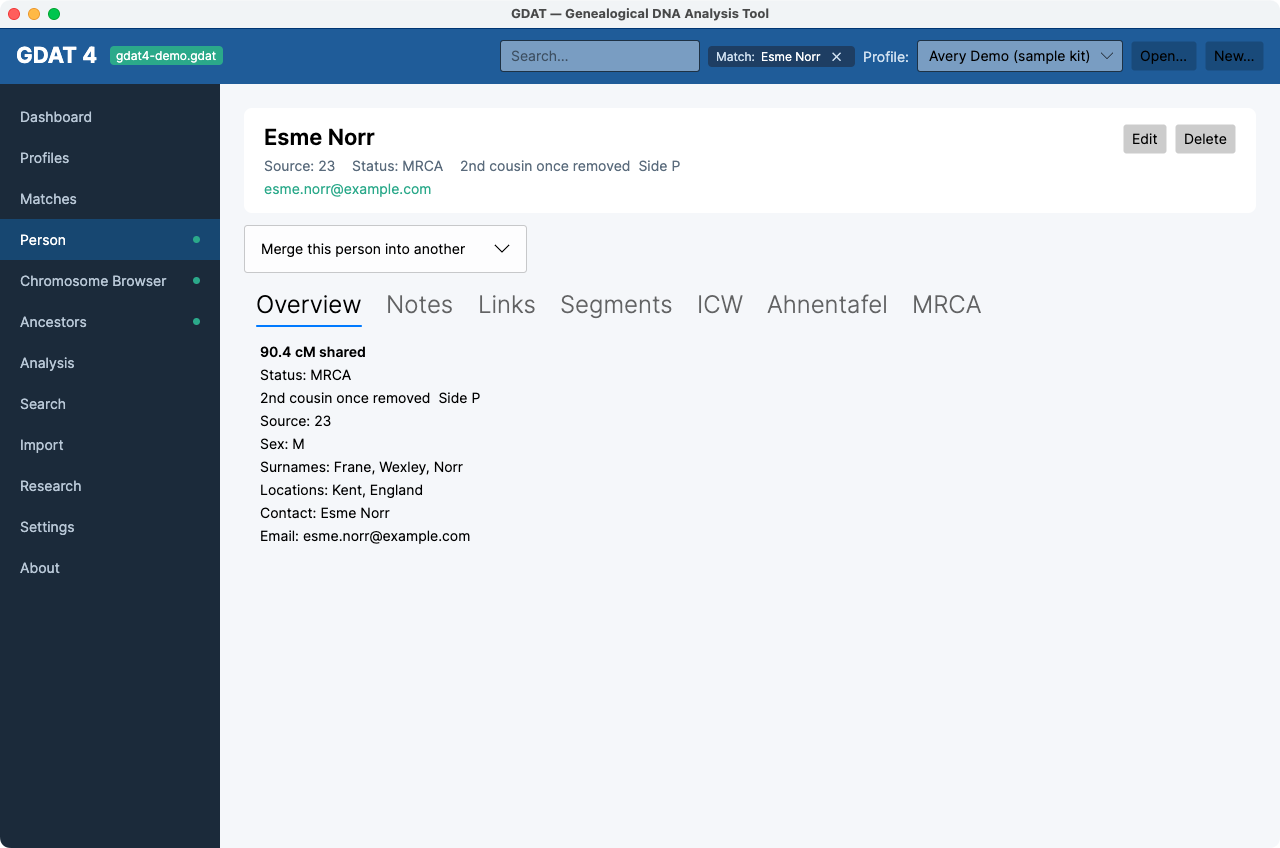
In Person, click Edit on the Overview tab to set the facts that drive later analysis:
- Side — paternal (
P), maternal (M), both (B), or unknown (?). Assigning a side is one of the most valuable things you can do — it feeds triangulation and segment analysis. - Status — your workflow state for the match (your own status codes, managed in Settings).
- Relationship — GDAT suggests one from the shared cM (“Suggested: 2nd cousin (233 cM)”); accept it or type your own.
- Haplogroups and contact details.
Then Save.
Add notes and links
- Notes tab — type a research note and click Add. Each note is timestamped; delete any row you no longer need.
- Links tab — attach URLs (a tree, a profile, a document) with a Type label so you can find them again.
See how a match connects
The remaining Person tabs help you place the match:
- Segments — the exact DNA segments you share (chromosome, start/end, cM, SNPs).
- ICW — who this match is in common with; double-click a row to jump to that person.
- Ahnentafel — the match's own ancestor tree, if you've imported it.
- MRCA — record the most-recent common ancestor you share (covered in Confirm & document an MRCA).
Fix a typo everywhere at once. To change the same text across many people
(say, a misspelled surname), use Search → Replace across a field — it
previews the count and backs up the database before replacing.
Merged duplicates? If the same person appears twice, open one, expand
Merge this person into another, and merge them into the survivor — their matches and
notes move over, with a backup and undo record kept.