Profiles
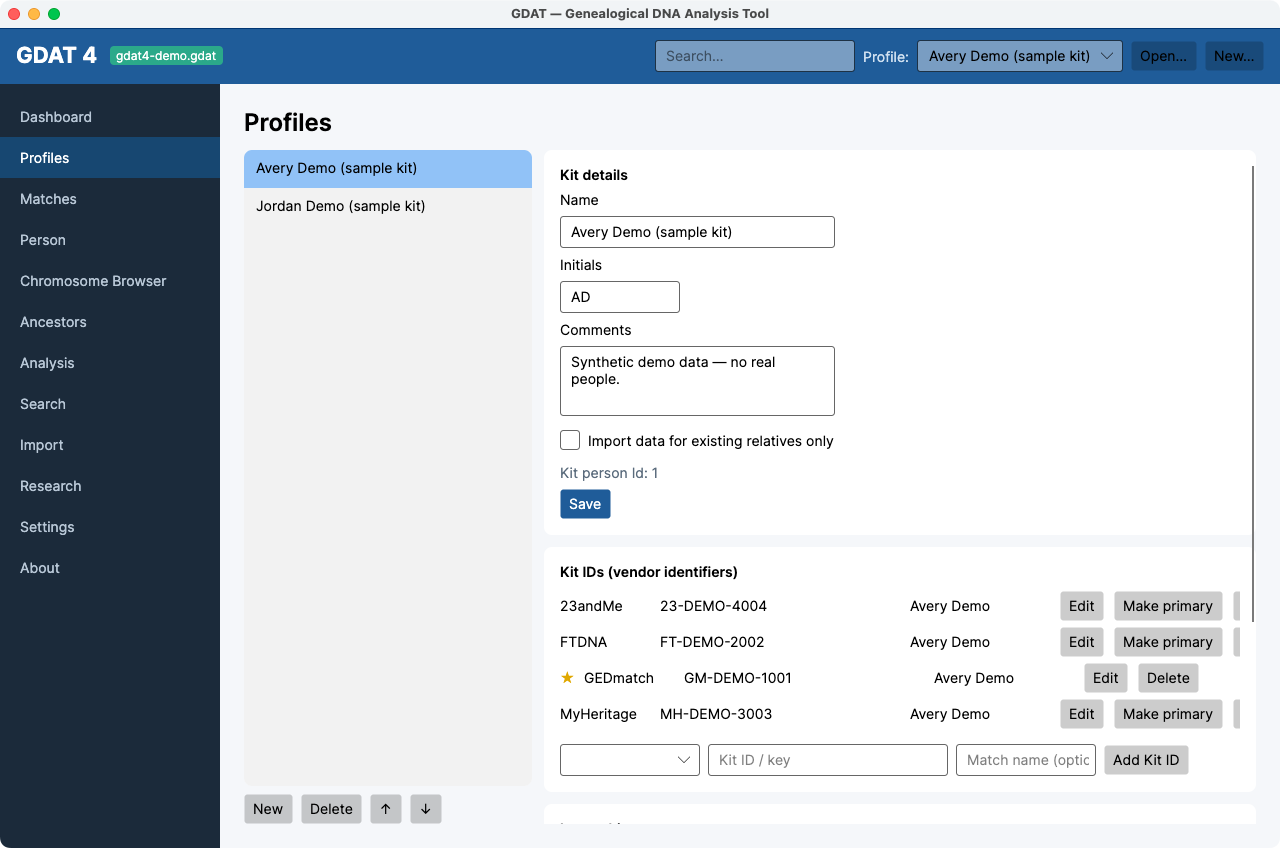
What it's for: managing your test kits (profiles) — the people whose DNA you're analyzing. Profiles sits second in the sidebar because the active kit scopes every other screen.
Common tasks
Create, reorder, or delete a kit
- New adds a kit; fill in Name, Initials, and optional Comments, then Save.
- ↑ / ↓ reorder the kit list (the order you see in the top-bar selector).
- Delete removes a kit — a backup is made first and the kit's data is cascaded out. You can't delete the only kit.
The checkbox Import data for existing relatives only limits future imports
for this kit to people already in the database — handy for topping up an established kit without adding
new matches.
Manage vendor kit IDs
The Kit IDs (vendor identifiers) card links this kit to its ID at each company, so imports match up correctly:
- Pick a Company (GEDmatch, FTDNA, Ancestry, MyHeritage, 23andMe), enter the Kit ID / key and an optional match name, and click Add Kit ID.
- Use Make primary (the ★) to set the main ID, or Edit / Delete a row.
Review import history
The Import history grid lists past imports for the kit — Template, Date, rows Added, and how many Mins it took.
If matches from one company aren't importing, check that the kit's
Kit ID for that company is correct and set as needed — a wrong or missing key is the
usual cause.