Import
What it's for: bringing data into the active profile — matches, segments, ICW, and ancestor trees. For the step-by-step of each path, see Import your matches.
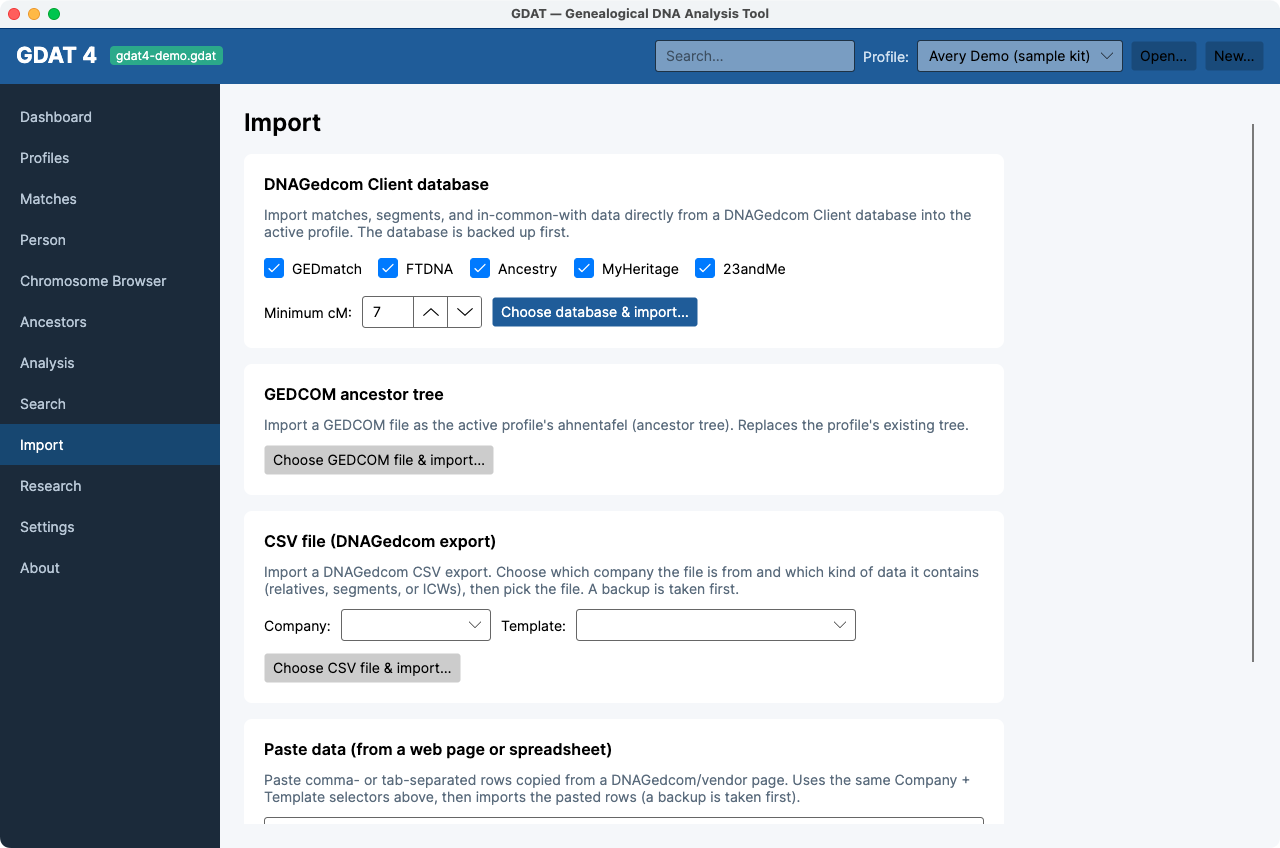
The four import cards
- DNAGedcom Client database — per-vendor toggles (GEDmatch, FTDNA, Ancestry,
MyHeritage, 23andMe), a Minimum cM (default 7), and
Choose database & import… (
.db/.sqlite). - GEDCOM ancestor tree — Choose GEDCOM file & import…
(
.ged/.gedcom); replaces the profile's tree and recomputes family groups. - CSV file (DNAGedcom export) — pick a Company and Template, then Choose CSV file & import….
- Paste data — paste rows from a web page or spreadsheet and click Parse & import pasted rows (comma or tab auto-detected).
Results
Progress is shown live (“Backing up database…,” “Importing…”) and a green tally reports people, matches, segments, ICWs, skipped rows, and the backup file.
Every import backs up the database first. If something imports wrong, you
can restore the backup named in the result.
Define your own column mappings under
Settings → CSV import templates; they then appear in the
Template dropdown here.